
Use code SAVE10 for 10% OFF your order. Valid until July 31st.

Send2Print LogoSend2Print

Free PDF tools.Less file fuss.

Merge documents, extract the pages you need and add blank sheets before sharing or printing.

No installation. Start with your PDF.

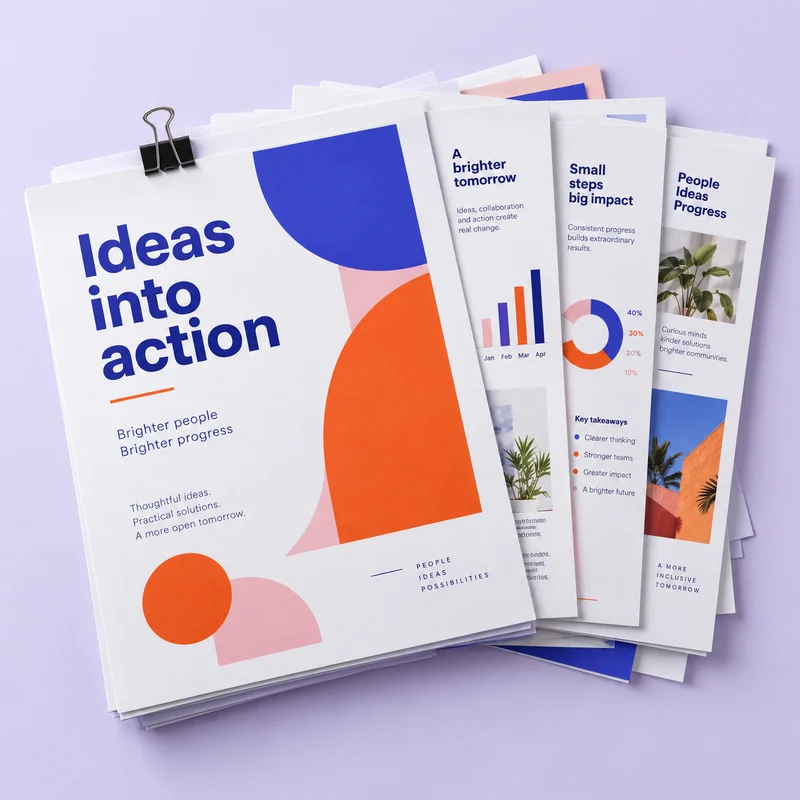
Colourful report pages arranged for sharing and printing

What would you like to do?

Choose a tool, select your file and download the result.

In development: Edit PDF n-Up layout

A little file prep.
A better print.

Send2Print’s free online PDF tools help you organise study notes, reports and business documents before you share or print them. Combine separate files, keep a useful page range or leave space for notes—all from your browser.

  1. Choose your tool

    Pick the PDF tool that fits what you need to do.

  2. Select your PDF

    Choose your file from your device and set the options.

  3. Download and check

    Save the new PDF and open it to check the result.

Combine documents in the right order

Use the PDF merge tool to bring a report and its attachments, a set of class notes or several business documents into one file. Files are combined in the order shown in the tool. Check that list before merging, then review the downloaded PDF from the first page to the last.

Use the PDF merge tool

Keep only the pages you need

Split PDF lets you save a continuous page range as a new document. Extract a chapter for revision or the relevant section of a long report without sharing the whole file. If your document needs space for notes or section breaks, use Add blank pages before your final review.

Use the PDF split tool

PDF tools, explained.

Quick answers to help you choose the right tool and prepare your next document.

Are these PDF tools free?

The available PDF tools are free to use and do not require a printing order. You can download your result for study, work or personal use. Printing is a separate service, with prices based on your chosen paper, quantity and finishing options.

Will my original PDF change?

No. Merge, Split and Add blank pages create a new PDF for you to download. The original files on your device stay unchanged. Keep those originals until you have opened the downloaded copy and checked its contents.

Where are my files processed?

Merge PDF, Split PDF and Add blank pages process your selected files in your browser. These operations do not upload your document to Send2Print storage. Uploading a file for a print order is a separate step in the ordering journey.

Can I edit text or compress a PDF?

Text editing and n-Up layouts are still in development, and this collection does not currently include a PDF compressor or a Word-to-PDF converter. The available page tools help you combine documents, extract a page range or insert blank pages; they do not rewrite the text in your PDF.

Can every protected PDF be unlocked?

No. Encrypted or password-protected PDFs may not be supported. This is not a password-recovery tool. If a protected file cannot be processed, ask its creator for an unprotected copy that you can use and print.

What should I check before printing my PDF?

Open your downloaded PDF and check page order, page size, orientation and any blank pages. Make sure text and images look clear at the intended print size. When you order, choose the correct single- or double-sided setting and review your binding options.

File ready? Bring it to print.

Choose your paper, print settings and binding.

Explore document printing
WhatsApp